Quickstart & First Switch
Once installed, RigSwitch lives quietly in your Windows notification area (System Tray).
1. System Tray Controls
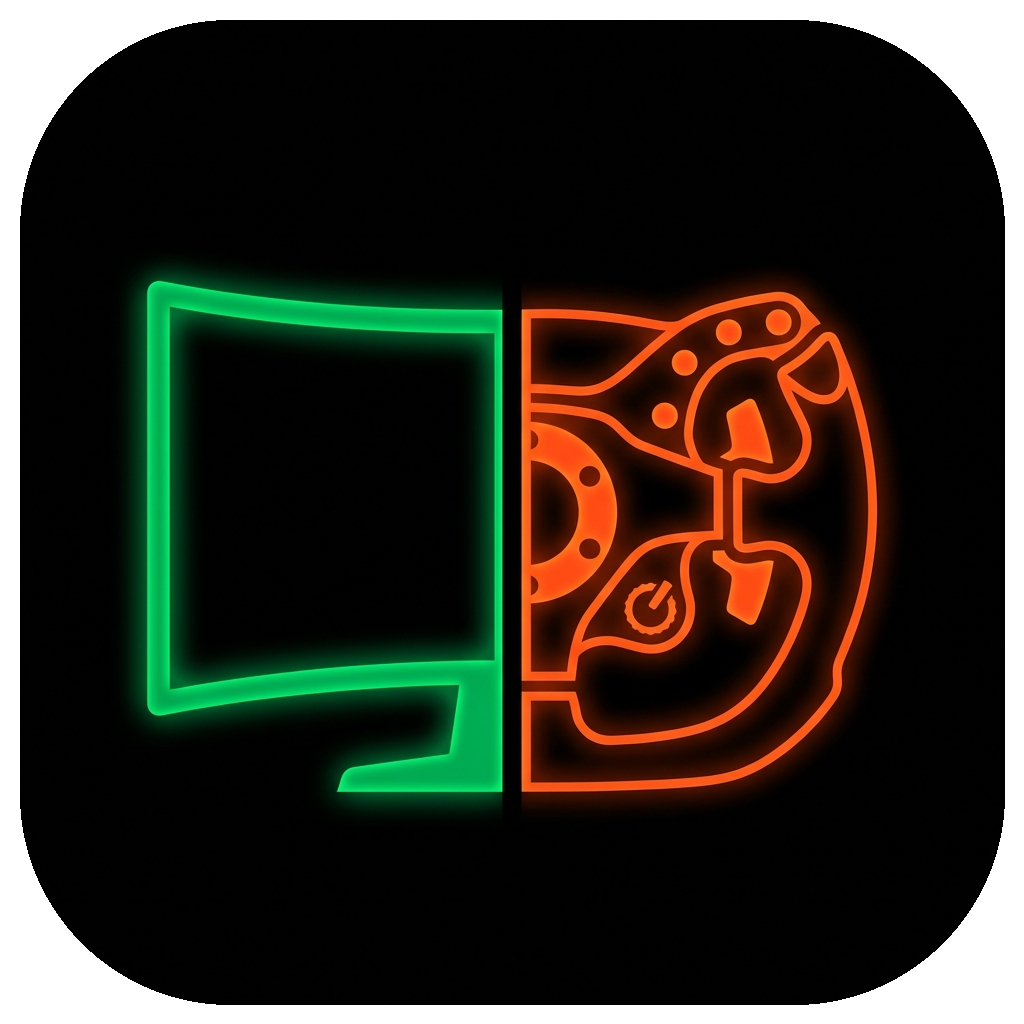
Look for the dynamic RigSwitch icon in your taskbar notification area:
- Emerald Ultrawide Monitor (
#00C853): Indicates your Desk Setup is active. - Molten Orange F1/GT3 Yoke (
#FF5500): Indicates your Sim Rig Setup is active.
Tray Actions:
- Single Left-Click: Flips instantly between Desk and Sim Rig modes.
- Right-Click Context Menu:
- 🖥️ Switch to Desk Setup: Expands into presets submenu (Work, Media, Clean Desk).
- 🏎️ Switch to Sim Rig Setup: Expands into presets submenu (GT3 / Circuit, Rally / Drift, Flight / Space).
- ⚙️ Settings...: Opens the OLED Settings Window.
- ❌ Exit RigSwitch: Gracefully unregisters hotkeys and terminates background services.
2. Default Global Hotkeys
You can toggle profiles or trigger direct presets from any application or full-screen game:
| Shortcut | Target Action |
|---|---|
| Ctrl + Alt + S | Toggle Profile (Desk ⟷ Sim Rig) |
| Ctrl + Alt + D | Desk Setup (Activates active Desk preset) |
| Ctrl + Alt + R | Sim Rig Setup (Activates active Rig preset) |
3. Configuring Your Hardware
- Right-click the tray icon and select Settings... (or launch
RigSwitch.App.exedirectly). - Under the Workstation Profiles tab:
- Select your Desk Display and Primary Audio Endpoint.
- Optionally select a Fallback Audio Endpoint (e.g. monitor speakers if your DAC or headphones are disconnected).
- Select your Sim Rig Display and Cockpit Audio Endpoint.
- Click Save Settings.
- Press Ctrl + Alt + S to test your switch!