
Single-User & Home-Lab Setup Guide



This guide details how to install, configure, and operate Model Context Gateway (MCG) for single users, home-lab enthusiasts, and local AI developers. It explains how to bypass external SSO complexity using standalone subnet trust, connect local LLMs (Ollama, LM Studio), and securely route tools to AI coding assistants.
🏛️ Homelab Architectural Topology
In a home-lab or single-user environment, MCG operates with zero external dependencies. SQLite provides embedded state storage, AES-256-GCM protects secrets with an auto-generated key, and local subnets enjoy instant administrator access.
⚡ 60-Second Quickstart
Launch Model Context Gateway in your home-lab with a single Docker Compose file:
1. Create docker-compose.yml
services:
  mcg:
    image: ghcr.io/spelech/model-context-gateway:latest
    container_name: mcg
    restart: unless-stopped
    ports:
      - "8080:8080"
    environment:
      # Grant full admin access to loopback and your home LAN subnets
      - STANDALONE_ALLOWED_NETWORKS=127.0.0.1,::1,192.168.0.0/16,10.0.0.0/8
    volumes:
      - ./data:/app/data
      - /var/run/docker.sock:/var/run/docker.sock
2. Start the Gateway
docker compose up -d3. Retrieve Your Bootstrap Keys
On initial startup, MCG automatically provisions the SQLite database, encrypts its tables, and outputs bootstrap keys to the ./data folder:
# General tool calling key for AI clients (Cursor, Claude, Cline, Windsurf)
cat ./data/.client.key
# -> mcp-glb-R4t8W1yU-9pM2nQ6sD8fH3jK5

# Administrator key for gateway management and AI agent automation (/admin)
cat ./data/.admin.key
# -> mcp-adm-Xk9L2mPq-7vN3wZ8aB1cE4fG9
4. Open the Web Dashboard
Navigate to http://localhost:8080/ (or your home-lab server IP, e.g. http://192.168.1.50:8080/). Because your IP falls within STANDALONE_ALLOWED_NETWORKS, the dashboard opens immediately with full administrative privileges without asking for credentials.
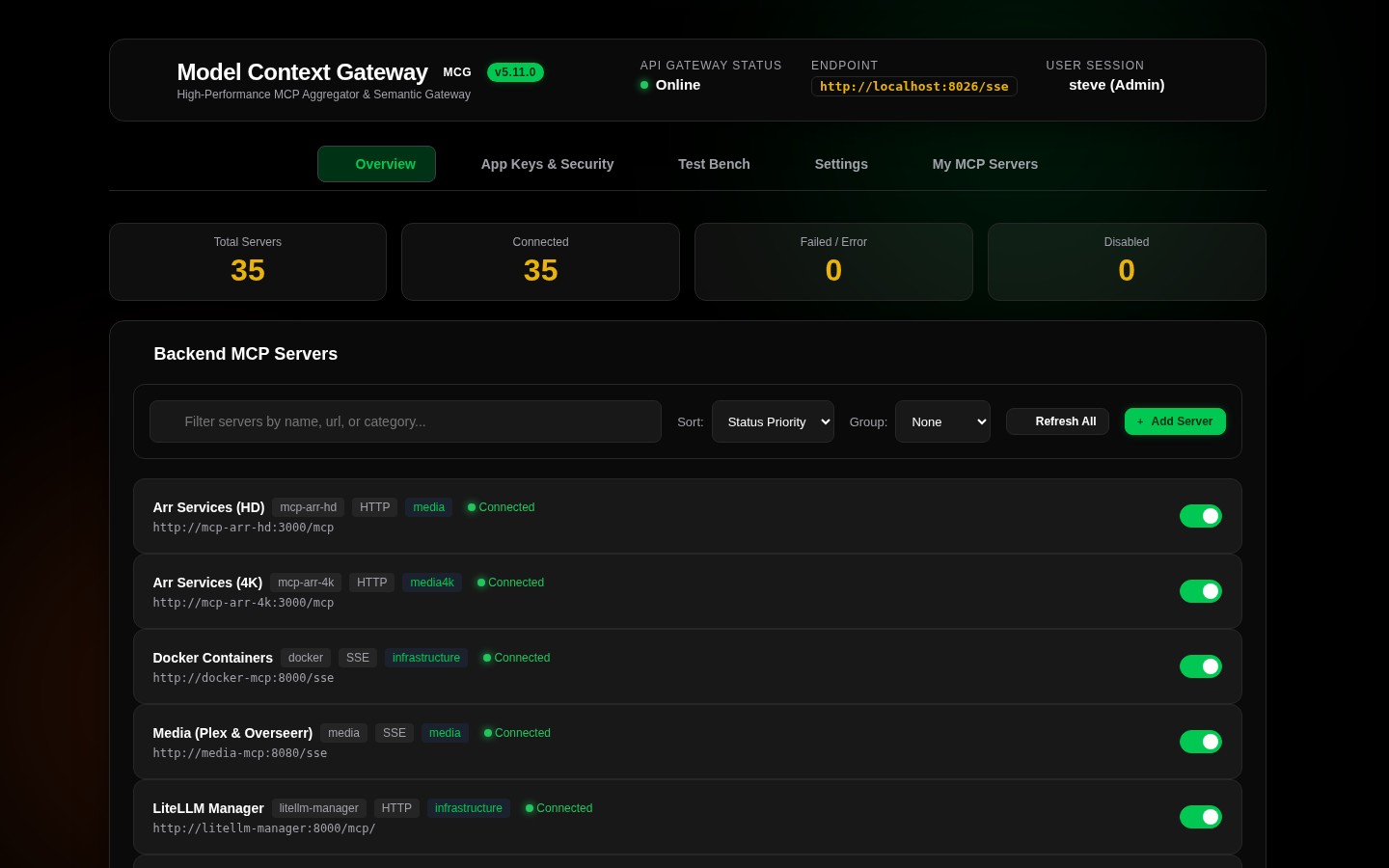
🛡️ Standalone Mode & Subnet Bypass (STANDALONE_ALLOWED_NETWORKS)
In corporate environments, MCG integrates with Active Directory, Authentik, or Keycloak. In a home-lab, setting up OAuth/OIDC can be unnecessary overhead.
How Standalone Mode Works
When no external Identity Provider (LDAP or OIDC forward-auth) is enabled, MCG activates Standalone Mode:
- Any HTTP request originating from
127.0.0.1,::1, or any CIDR subnet defined inSTANDALONE_ALLOWED_NETWORKSis automatically authenticated asAdministrator(admin). - Requests from outside these subnets must provide a valid
Authorization: Bearer <appkey>header. - You can specify comma-separated IPv4 and IPv6 subnets:bash
STANDALONE_ALLOWED_NETWORKS=127.0.0.1,::1,192.168.1.0/24,10.10.0.0/16
🔑 AppKey Scoping & Granular Permissions
Even in a single-user home-lab, restricting what each AI assistant can do protects your local system from runaway scripts or unintended tool execution.
Scope Syntax & Best Practices
| Scope Type | Example Syntax | Description | Best For |
|---|---|---|---|
| Global Access | all or * | Full unrestricted access to all backend servers and tools | Claude Desktop, Antigravity, trusted personal CLI |
| Server Scoped | server:docker, server:postgres | Restricts access to one specific backend server | Cursor, VS Code / Cline |
| Category Scoped | category:devops, category:media | Restricts access to servers tagged with that category | Specialized AI assistants (e.g. Home Assistant agent) |
| Tool Scoped | tool:docker__list_containers | Restricts access to a single specific tool | Scripts, cron jobs, and webhooks |
| Capability Scoped | resources:read, prompts:read | Read-only context lookup without tool execution rights | Documentation lookup assistants |
| System Admin | admin | Full gateway configuration via Admin MCP Server (/admin) | Autonomous admin assistants |
Provisioning AppKeys
You can create and manage AppKeys using three convenient methods:
Option A: Web Dashboard
- Open
http://localhost:8080/and click App Keys & Security. - Click + Generate App Key.
- Enter a name (e.g.,
Cursor - Docker Only), choose a scope (server:docker), and click Generate Key. - Copy the generated secret key (it is shown only once).
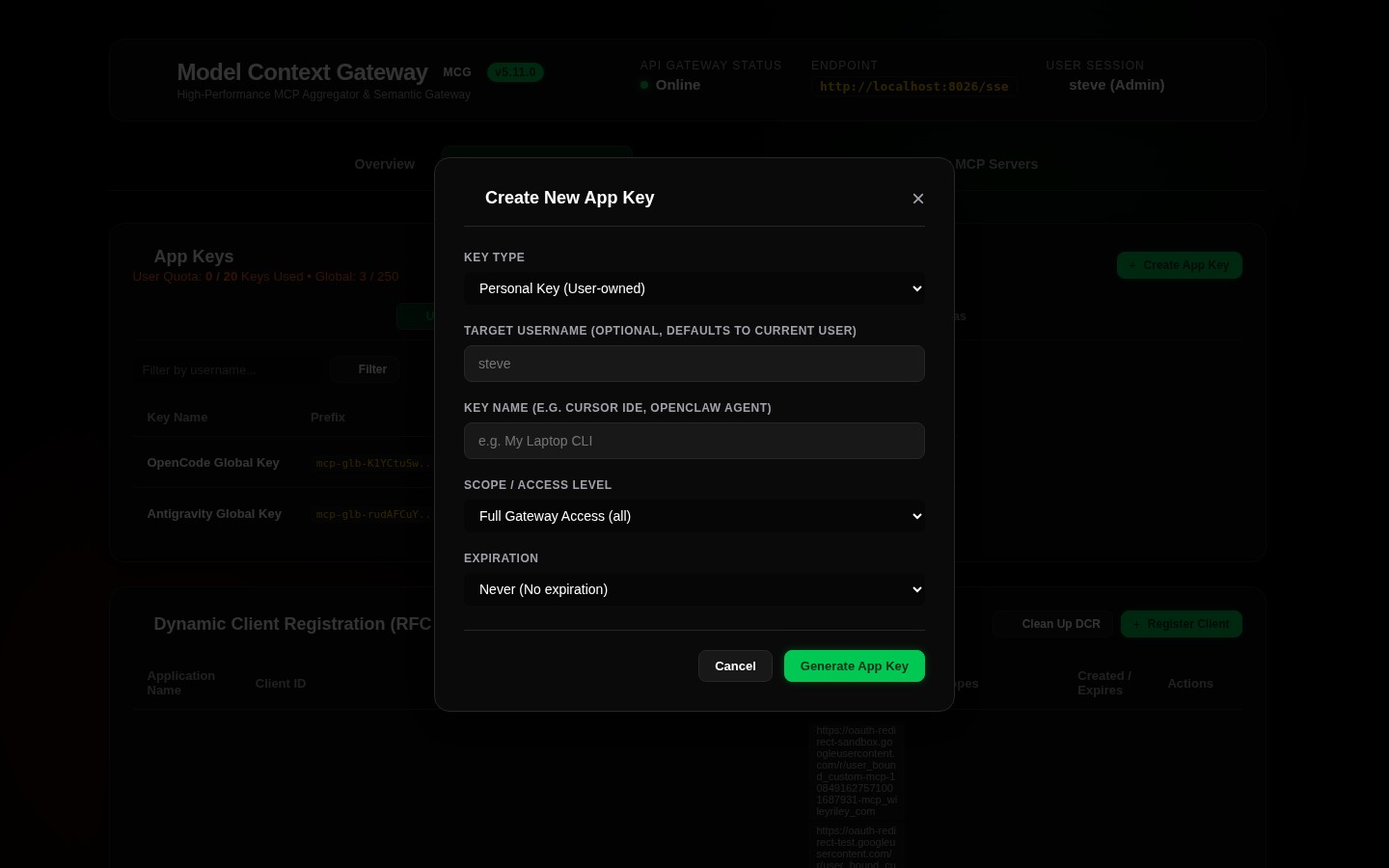
Option B: Pre-Seeding via Environment Variable
Pre-seed multiple keys at container startup using MCG_CLIENT_APP_KEYS:
MCG_CLIENT_APP_KEYS=mcp-glb-claudeFull123:ClaudeDesktop:all,mcp-srv-cursorDocker456:Cursor:server:docker,mcp-grp-openWebUI789:OpenWebUI:category:mediaOption C: AI Agent Tool Call (manage_appkeys)
AI coding agents connected to /admin can invoke the manage_appkeys tool directly:
{
  "action": "create",
  "name": "Cline Key",
  "scopes": ["server:filesystem", "server:git"]
}
🔒 Built-in SQLite AES-256-GCM Secret Storage
Model Context Gateway eliminates the need to run an external HashiCorp Vault instance for home-lab deployments:
- Zero External Dependencies: All credentials entered in the dashboard (Plex tokens, GitHub PATs, Docker socket credentials) are encrypted at rest in SQLite.
- AES-256-GCM Envelope Encryption: MCG uses an auto-generated 256-bit key saved to
./data/.master.key(withchmod 0600permissions). - Just-In-Time Header Injection: MCG holds credentials encrypted until an AI client executes a tool. It then decrypts the key in memory and injects it into the outbound request, shielding credentials from the client LLM.
💻 AI Client Configuration Snippets
Add these configuration blocks to your AI client configuration files, replacing the bearer key with the value from ./data/.client.key:
1. Claude Desktop (claude_desktop_config.json)
{
  "mcpServers": {
    "mcg": {
      "command": "npx",
      "args": ["-y", "@modelcontextprotocol/client-sse", "http://localhost:8080/sse"],
      "env": {
        "Authorization": "Bearer mcp-glb-R4t8W1yU-9pM2nQ6sD8fH3jK5"
      }
    }
  }
}
2. Cursor (.cursor/mcp.json)
{
  "mcpServers": {
    "mcg": {
      "url": "http://localhost:8080/sse",
      "headers": {
        "Authorization": "Bearer mcp-glb-R4t8W1yU-9pM2nQ6sD8fH3jK5"
      }
    }
  }
}
3. VS Code / Cline / Roo-Code (cline_mcp_settings.json)
{
  "mcpServers": {
    "mcg": {
      "url": "http://localhost:8080/sse",
      "transport": "sse",
      "headers": {
        "Authorization": "Bearer mcp-glb-R4t8W1yU-9pM2nQ6sD8fH3jK5"
      }
    }
  }
}
4. Windsurf (mcp_config.json)
{
  "mcpServers": {
    "mcg": {
      "serverUrl": "http://localhost:8080/sse",
      "headers": {
        "Authorization": "Bearer mcp-glb-R4t8W1yU-9pM2nQ6sD8fH3jK5"
      }
    }
  }
}
5. Autonomous Admin Agent (Admin MCP Server)
To grant an autonomous agent (such as Antigravity) administrative authority over MCG:
{
  "mcpServers": {
    "mcg-admin": {
      "url": "http://localhost:8080/admin/sse",
      "headers": {
        "Authorization": "Bearer mcp-adm-Xk9L2mPq-7vN3wZ8aB1cE4fG9"
      }
    }
  }
}
🦙 Local LLM Integrations (Ollama, LM Studio, Open WebUI)
MCG works seamlessly with locally hosted Large Language Models running on your home-lab hardware:
1. Ollama Tool Calling
Modern Ollama models (such as llama3.1, qwen2.5, mistral-nemo) support native function calling. You can bridge Ollama to MCG using Open WebUI or an MCP proxy bridge:
- Point Open WebUI or your LangChain/LlamaIndex script to Ollama (
http://localhost:11434/v1). - Configure Open WebUI Tools / MCP integrations to connect to
http://mcg:8080/ssewith yourmcp-glb-...AppKey.
2. LM Studio
LM Studio provides an OpenAI-compatible local server (http://localhost:1234/v1):
- Start an MCP-compatible agent frontend (e.g. Chatbox, LibreChat, or Open WebUI).
- Point the LLM endpoint to LM Studio and the Tool/MCP endpoint to
http://localhost:8080/sse. - The local model issues standard
search_toolsandexecute_toolcalls through MCG Meta-Mode, dynamically searching and calling all home-lab tools.
3. Open WebUI Native Tool Integration
In Open WebUI:
- Navigate to Admin Settings -> Tools -> Add Tool.
- Select MCP (Model Context Protocol).
- Enter Server URL:
http://mcg:8080/sse. - Enter Custom Headers:
{"Authorization": "Bearer mcp-glb-..."}. - Open WebUI now exposes your home-lab tool suite to all local chat sessions.
🐳 Homelab Docker MCP Auto-Discovery
When you mount /var/run/docker.sock:/var/run/docker.sock in your MCG container, MCG automatically discovers and registers companion containers on your Docker host:
services:
  # Example: PostgreSQL Database MCP Server
  postgres-mcp:
    image: cschreib/postgres-mcp:latest
    container_name: postgres-mcp
    restart: unless-stopped
    labels:
      - "mcp.enabled=true"
      - "mcp.name=PostgreSQL Database"
      - "mcp.category=databases"
    environment:
- DATABASE_URL=postgresql://user:pass@db:5432/mydb- MCG watches the Docker socket for container lifecycle events.
- When a container with
mcp.enabled=truestarts, MCG inspects its exposed ports and registers its HTTP/SSE tools automatically. - Your connected AI clients immediately discover the new database tools via
search_toolswithout restarting MCG or editing configuration files.