01. Dashboard & Navigation Interface
The Model Context Gateway (MCG) Dashboard provides a centralized control plane for monitoring, configuring, testing, and securing all connected backend Model Context Protocol (MCP) servers, client connections, and security policies.
🖥️ Layout & Primary Navigation Tabs
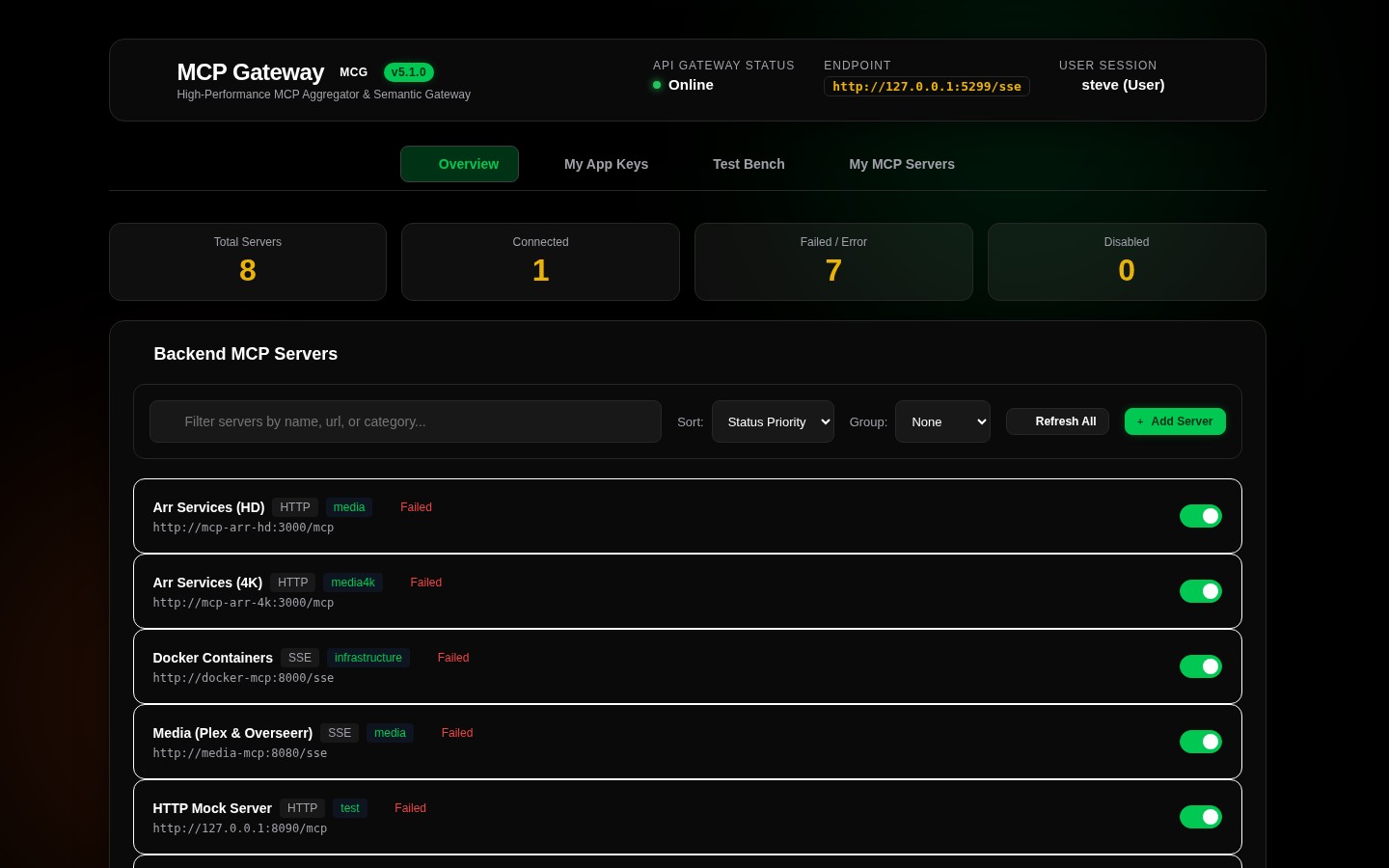
The web interface features a dark-mode glassmorphic design with a fixed top navigation bar that enables one-click switching across primary functional views:
+--------------------------------------------------------------------------------------------------------+
| 🌐 Model Context Gateway (MCG)  [Overview] [App Keys & Security] [Test Bench] [Settings] [My MCP Servers]  👤 admin |
+--------------------------------------------------------------------------------------------------------+
- Overview (
Overview): Primary dashboard displaying aggregated operational metrics (StatsCard), the backend MCP server catalog, dynamic filtering/sorting toolbars, and the interactive client setup generator. - App Keys & Security (
App Keys & Security/My App Keys): Dedicated management plane for generating AppKeys, inspecting connected client agents, configuring least-privilege scopes, managing user quotas, and copying client configuration JSON snippets. - Test Bench (
Test Bench): Interactive developer playground for executing namespaced tools, reading virtual resource URIs, evaluating prompt templates, testing semantic vector search, direct JSON-RPC console, and monitoring live logs. - Settings (
Settings- Admin Only): Multi-tab system configuration for vector embedding engines, Identity & Auth providers, enterprise Secret retrievers, custom JSON specification files, and Access Control policies. - My MCP Servers (
My MCP Servers): Multi-tenant workspace for end-users to manage personal access tokens (PATs), view user-accessible servers, and copy direct personalized connection endpoints. - Identity & Version Badge: Top-right corner displays the authenticated user identity (resolved via OIDC headers or Active Directory) alongside the live router version.
📊 Overview View: Statistics & Metric Cards
Statistics Summary Card (StatsCard)
Positioned at the top of the Overview tab, this card aggregates real-time health and catalog metrics:
- Total Backend Servers: Total number of registered MCP servers in the database.
- Healthy Connections: Count of active servers reporting a healthy connection (
Connectedstatus). - Total Tools: Aggregated count of all discovered backend tools across active servers.
- Total Resources & Prompts: Count of registered virtual resource URIs and prompt templates.
- Active Clients & AppKeys: Number of registered external client applications and valid AppKeys.
🎛️ Server Controls Toolbar: Search, Sort, & Grouping
The server catalog is managed through the interactive Server Controls Toolbar:
[ 🔍 Search servers by name, ID, category... ] [ Sort: Status ▾ ] [ Group: Category ▾ ] [ + Add Server ]
1. Real-Time Search & Filtering
- Instant Filter: Filters server cards dynamically as you type across server display name, unique ID, base URL/command, or category tags.
- Category Filtering: Click category badges or type category names to filter (e.g.
Smart Home,Media,Infrastructure,Cloud).
2. Multi-Mode Sorting
Sort the server catalog by:
* Status Priority (Default): Connected servers first, followed by Disconnected, then Disabled.
* Name (A–Z / Ascending): Alphabetical sort by display name.
* Name (Z–A / Descending): Reverse alphabetical sort by display name.
* Transport Type: Grouped by SSE, HTTP, or STDIO.
* Category: Alphabetical sort by primary category tag.
3. Hierarchical Grouping & Collapsible Sections
Organize the server list into collapsible visual accordions:
* None: Flat list view with full pagination.
* Group by Category: Segregates servers by domain tags (Media, Smart Home, Infrastructure, Cloud, Uncategorized).
* Group by Status: Segregates servers by connection health (Connected, Disconnected, Disabled).
* Group by Transport Type: Segregates servers by protocol (SSE, HTTP, STDIO).
* Collapsible Sections: Click any section header to collapse or expand the group.
4. Dynamic Pagination Toolbar (PaginationToolbar)
When viewing flat lists (Group: None), the footer toolbar allows:
* Choosing page size: 10, 25, 50, or All items per page.
* Navigating between pages with First, Previous, Page Numbers, Next, and Last buttons.
🗂️ Server Status Cards
Each registered backend MCP server is rendered in an individual glassmorphic card:
+---------------------------------------------------------------------------------------------+
| 🟢 Docker Daemon MCP  [docker]                     [SSE] [Tools: 24] [Resources: 6] [Vault] |
| 🔗 http://docker-mcp:8080/sse                      📂 Infrastructure                        |
|                                                                                             |
| [ 👁️ Inspect ]  [ ✏️ Edit ]  [ 🛡️ Policy ]  [ 🔄 Reconnect ]  [ 🗑️ Delete ]                 |
+---------------------------------------------------------------------------------------------+
Card Indicators & Badges
- Connection Status Indicator:
- 🟢 Green (Connected): Active connection; tools/resources cached and operational.
- 🟡 Yellow (Connecting / Degraded): Initializing connection or experiencing intermittent timeouts.
- 🔴 Red (Disconnected / Error): Unreachable endpoint, process crash, or invalid credentials.
- ⚫ Gray (Disabled): Administratively paused; no traffic routed.
- Transport Badge: Protocol used (
SSE,HTTP,STDIO). - Capabilities Badges: Count of discovered tools, virtual resources, and prompt templates.
- Secret Provider Badge: Credential source (
None,Env,Vault,Registry,OAuth2). - Category Badges: Categorization tags applied to the server.
Card Actions
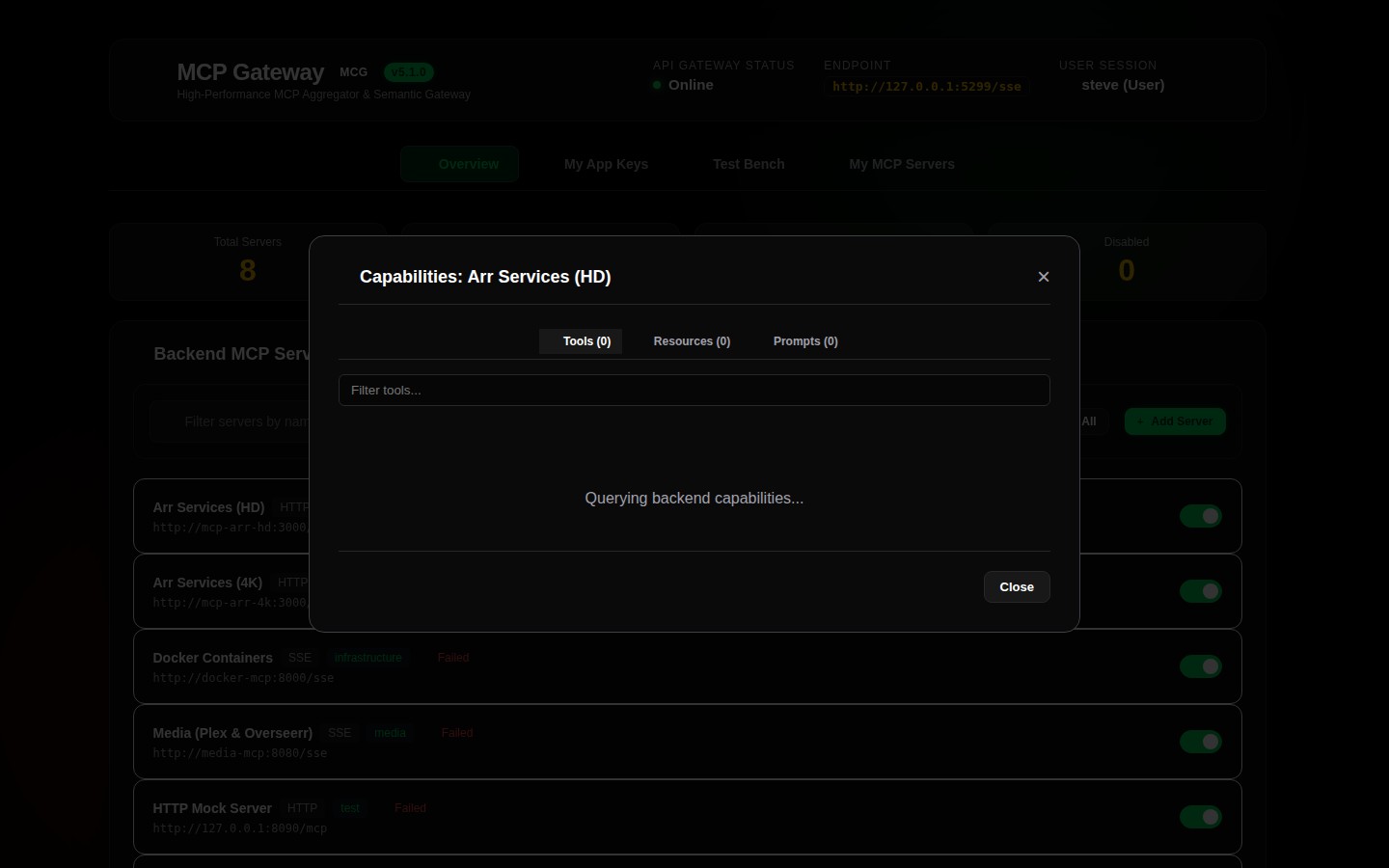
- 👁️ Inspect: Opens the Server Inspect Modal displaying full tool JSON schemas, argument specifications, virtual resource URIs, and prompt arguments.
- ✏️ Edit: Opens the Server Edit Modal to modify display name, URL/command, transport type, headers, categories, or secret provider configurations.
- 🛡️ Policy: Opens the Policy Modal to define fine-grained Active Directory / OIDC group access rules (Allowed Groups, Denied Groups, Default Allow/Deny).
- 🔄 Reconnect: Forces an immediate background cache flush and downstream connection reset.
- 🗑️ Delete: Safely removes the server registration and cleans up in-memory sessions.
🔑 My MCP Servers (Per-User Provided Credentials)
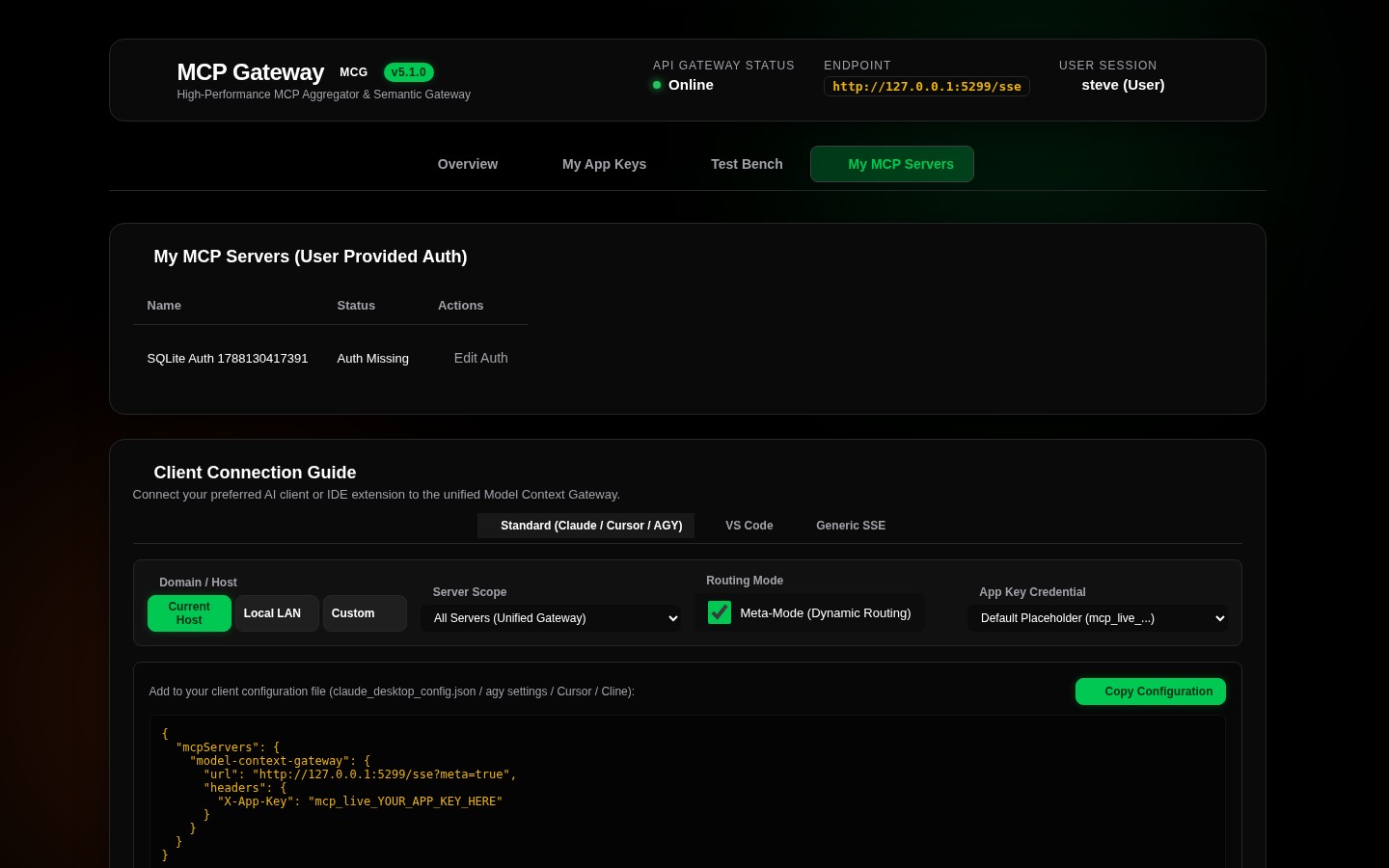
For multi-tenant environments where individual users bring their own personal access tokens (PATs) or API credentials, the My MCP Servers tab allows end-users to securely manage and store isolated credentials encrypted in SQLite or MySQL with the master envelope key.
📖 Navigation Flow Summary
graph TD
    Nav[Global Top Navigation] --> Overview[Overview Tab]
    Nav --> Security[App Keys & Security Tab]
    Nav --> TestBench[Test Bench Tab]
    Nav --> Settings[Settings Tab - Admin]
    Nav --> MyServers[My MCP Servers Tab]

    Overview --> Stats[Operational Stats Card]
    Overview --> Controls[Search / Sort / Group Controls]
    Overview --> ServerCards[Server Status Cards]
    Overview --> QuickSetup[Client Setup Guide]

    Security --> AppKeys[AppKey Generation & Scopes]
    Security --> Clients[Connected Clients Registry]
    Security --> Quotas[User Quotas & Lifecycle Limits]
    Security --> SetupSnippets[Client Config Snippets]

    TestBench --> ToolTester[Tool Execution Form Builder]
    TestBench --> ResTester[Virtual Resource Reader]
    TestBench --> PromptTester[Prompt Template Tester]
    TestBench --> SemanticRouter[Semantic Search Simulator]
    TestBench --> RawConsole[JSON-RPC Direct Console]
    TestBench --> LiveLogs[Real-time Terminal Logs]

    Settings --> GenTab[Vector & Search Engines]
    Settings --> IdTab[Identity & Auth Providers]
    Settings --> SecProvTab[Secret Providers Configuration]
    Settings --> FilesTab[Custom Prompts & Resources]
    Settings --> AccessTab[RBAC Policies & Group Mappings]

    MyServers --> PersonalCreds[Personal User Credentials]
    MyServers --> UserEndpoints[Custom Connection Endpoints]