
Dashboard & Navigation Interface
The Model Context Gateway (MCG) Dashboard provides a centralized, web-based management interface to monitor, configure, test, and secure your Model Context Protocol (MCP) servers, client connections, and security policies.
🖥️ Layout & Primary Navigation Tabs
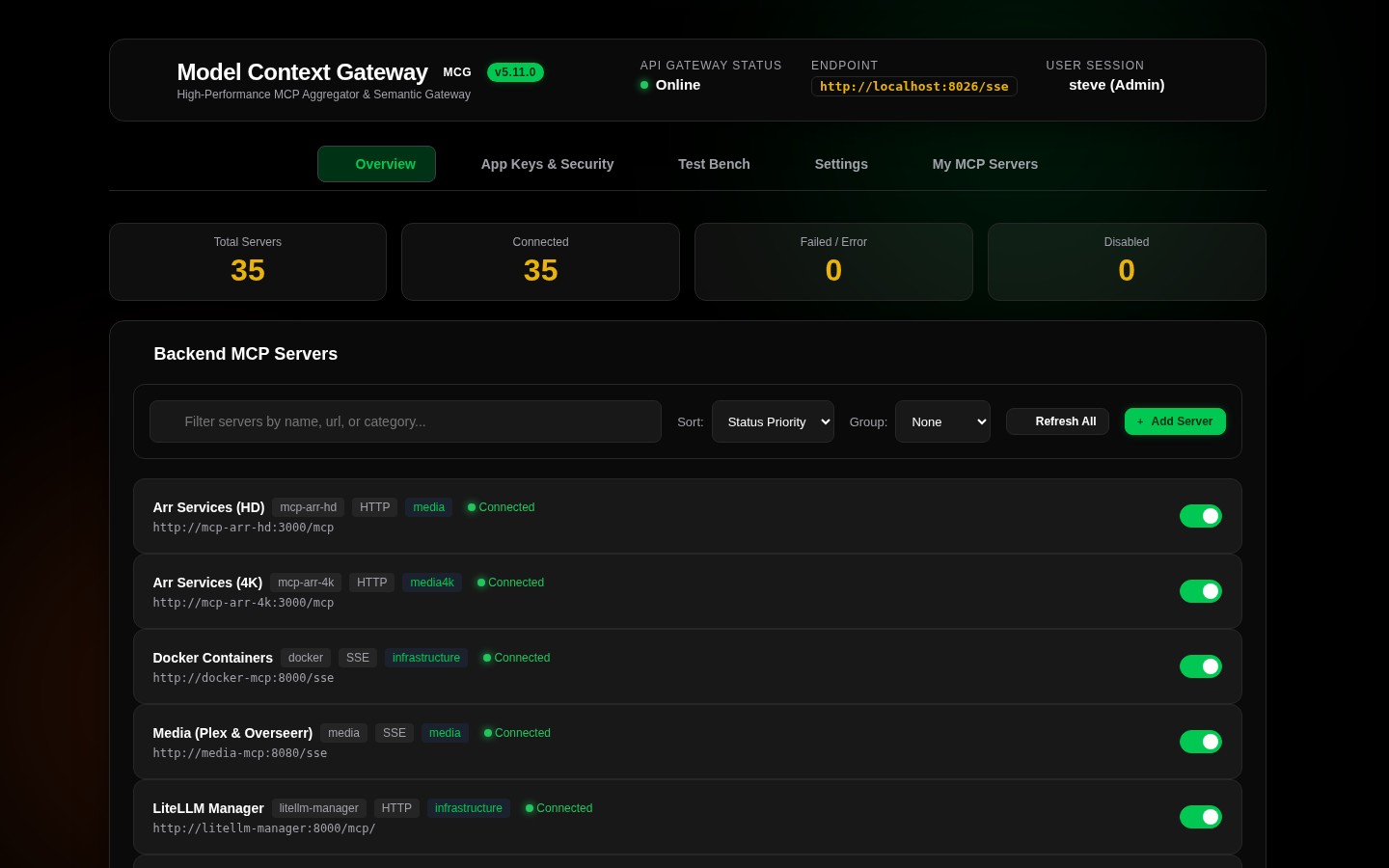
The web interface features a fixed top navigation bar allowing one-click access across all primary subsystems:
| Navigation Item | Description |
|---|---|
| Overview | Operational dashboard, system stats, server catalog, and client setup guides |
| App Keys & Security | Mint AppKeys, manage scope boundaries, inspect clients, and view user quotas |
| Test Bench | Interactive tool tester, resource reader, prompt renderer, semantic search simulator, console, and live logs |
| Settings | Configuration for vector search, identity providers, secret providers, custom files, and RBAC policies |
| My MCP Servers | Personal user access tokens, personal server management, and direct endpoints |
- Overview (
Overview): Displays system health metrics (StatsCard), the full registered server catalog, search and sort controls, and the interactive client setup guide. - App Keys & Security (
App Keys & Security/My App Keys): Create and manage cryptographically hashed AppKeys, inspect connected clients, set access scopes, manage user quotas, and copy client configuration snippets. - Test Bench (
Test Bench): Directly execute tools, read virtual resources, test prompt templates, run semantic searches, send raw JSON-RPC commands, and view live gateway diagnostic logs. - Settings (
Settings- Admin Only): Configure vector search engines (Local ONNX vs OpenAI/Ollama), identity providers, secret providers, custom files, and access control policies. - My MCP Servers (
My MCP Servers): Manage personal access tokens (PATs), view accessible servers, and copy user-scoped direct connection endpoints. - Identity & Version Badge: Displays the active authenticated user principal name and the running gateway version in the top-right corner.
📊 Overview View: Statistics & Metric Cards
Statistics Summary Card (StatsCard)
The StatsCard appears at the top of the Overview view, reporting real-time operational status across the entire server catalog:
- Total Servers: The total count of registered MCP servers in the database.
- Connected: The number of enabled servers with an active, healthy upstream connection.
- Failed / Error: The number of enabled servers currently reporting an unreachable endpoint, process crash, or connection timeout.
- Disabled: The number of administratively paused or disabled servers.
🎛️ Server Controls Toolbar: Search, Sort, & Grouping
Manage and filter your server catalog using the Server Controls Toolbar:
[ 🔍 Search servers by name, ID, category... ] [ Sort: Status ▾ ] [ Group: Category ▾ ] [ + Add Server ]1. Real-Time Search & Filtering
- Instant Filter: Type in the search box to filter servers in real time. The filter matches display names, server IDs, URLs, commands, and assigned categories.
- Category Filtering: Click on any category badge or type a category name to isolate specific server domains (such as
Smart Home,Media,Infrastructure, orCloud).
2. Multi-Mode Sorting
Sort the catalog instantly using the Sort dropdown:
- Status Priority (Default): Prioritizes connected servers first, followed by disconnected servers, and disabled servers last.
- Name (A–Z / Ascending): Alphabetical sort by server display name.
- Name (Z–A / Descending): Reverse alphabetical sort by server display name.
- Transport Type: Groups and sorts by protocol type (
SSE,HTTP, orSTDIO). - Category: Sorts alphabetically by primary category tag.
3. Hierarchical Grouping & Collapsible Sections
Organize the server list into collapsible sections with the Group dropdown:
- None: Flat list rendering with dynamic pagination controls.
- Group by Category: Groups servers by domain tags (
Media,Smart Home,Infrastructure,Cloud). - Group by Status: Groups servers by connection health (
Connected,Disconnected,Disabled). - Group by Transport Type: Groups servers by protocol (
SSE,HTTP,STDIO). - Collapsible Sections: Click any group header to expand or collapse that section.
4. Dynamic Pagination Toolbar (PaginationToolbar)
When viewing the server catalog in flat mode (Group: None), the footer toolbar provides comprehensive pagination:
- Page Size: Switch between 10, 25, 50, or All servers per page.
- Page Navigation: Jump quickly using First, Previous, numbered page buttons, Next, and Last.
🗂️ Server Status Cards
Each registered backend MCP server is represented by an interactive status card:
Card Indicators & Badges
- Connection Status Indicator:
- 🟢 Green (Connected): Upstream connection is healthy; tools and resources are cached and ready for routing.
- 🟡 Yellow (Connecting / Degraded): The gateway is establishing a connection or encountering transient latency.
- 🔴 Red (Disconnected / Error): Endpoint is unreachable, child process terminated, or authentication failed.
- ⚫ Gray (Disabled): Administratively disabled; no traffic is routed to this server.
- Transport Badge: Displays the active protocol (
SSE,HTTP, orSTDIO). - Capabilities Badges: Shows the count of discovered tools, virtual resources, and prompt templates.
- Secret Provider Badge: Identifies the credential resolution mechanism (
None,Env,Vault,Registry,OAuth2). - Category Badges: Displays category tags assigned to the server.
Card Actions
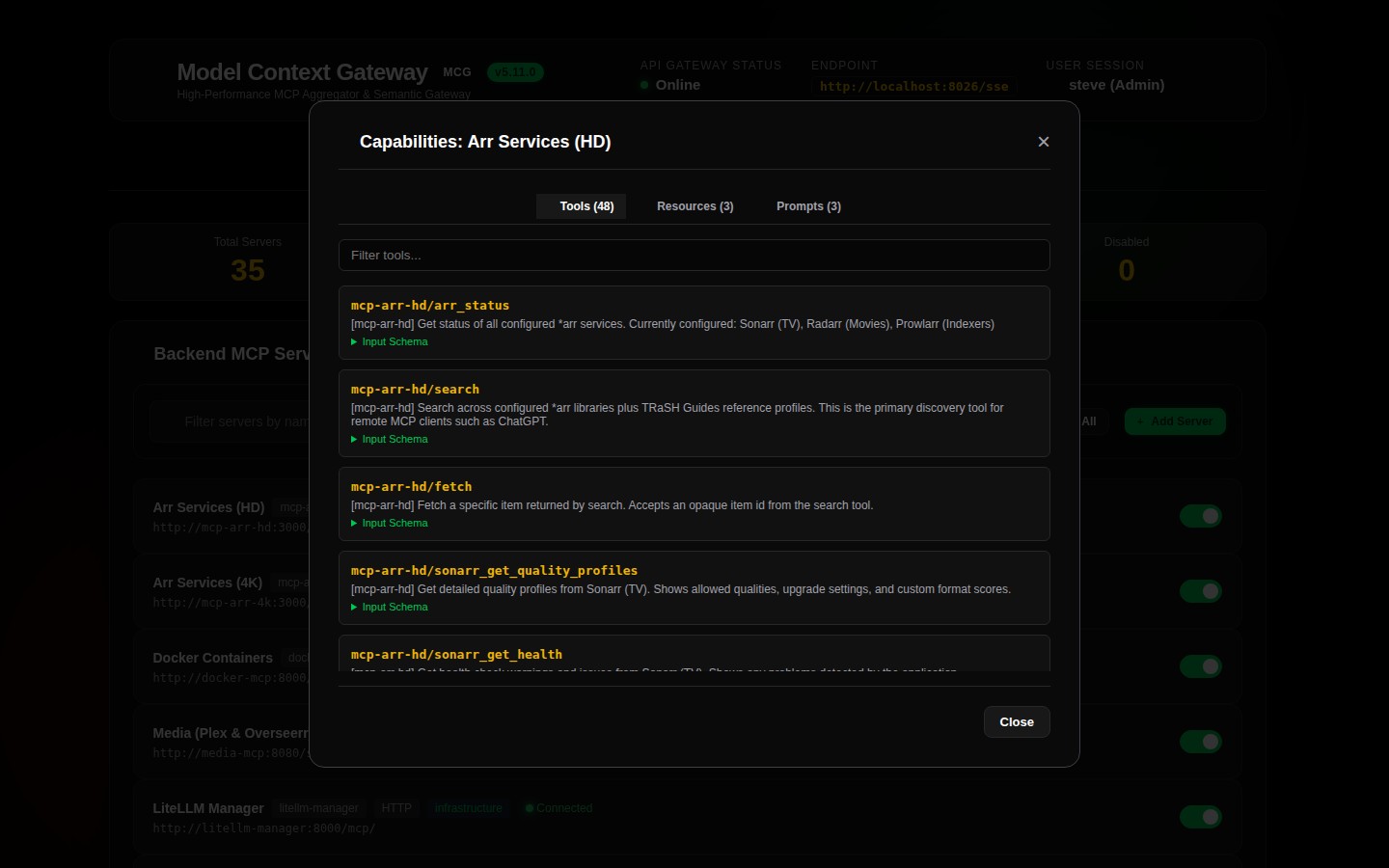
- 👁️ Inspect: Opens the Server Capabilities Inspect Modal to examine discovered tool schemas, resource URIs, and prompt parameters.
- ✏️ Edit: Opens the Edit modal to update display names, endpoints, commands, custom HTTP headers, categories, and secrets.
- 🛡️ Policy: Opens the Policy modal to configure allowed groups, denied groups, and default access behaviors.
- 🔄 Reconnect: Flushes in-memory capability caches and forces an immediate reconnect to the downstream server.
- 🗑️ Delete: Unregisters the server from the database and terminates any active child processes or client sessions.
🔑 My MCP Servers (Per-User Provided Credentials)
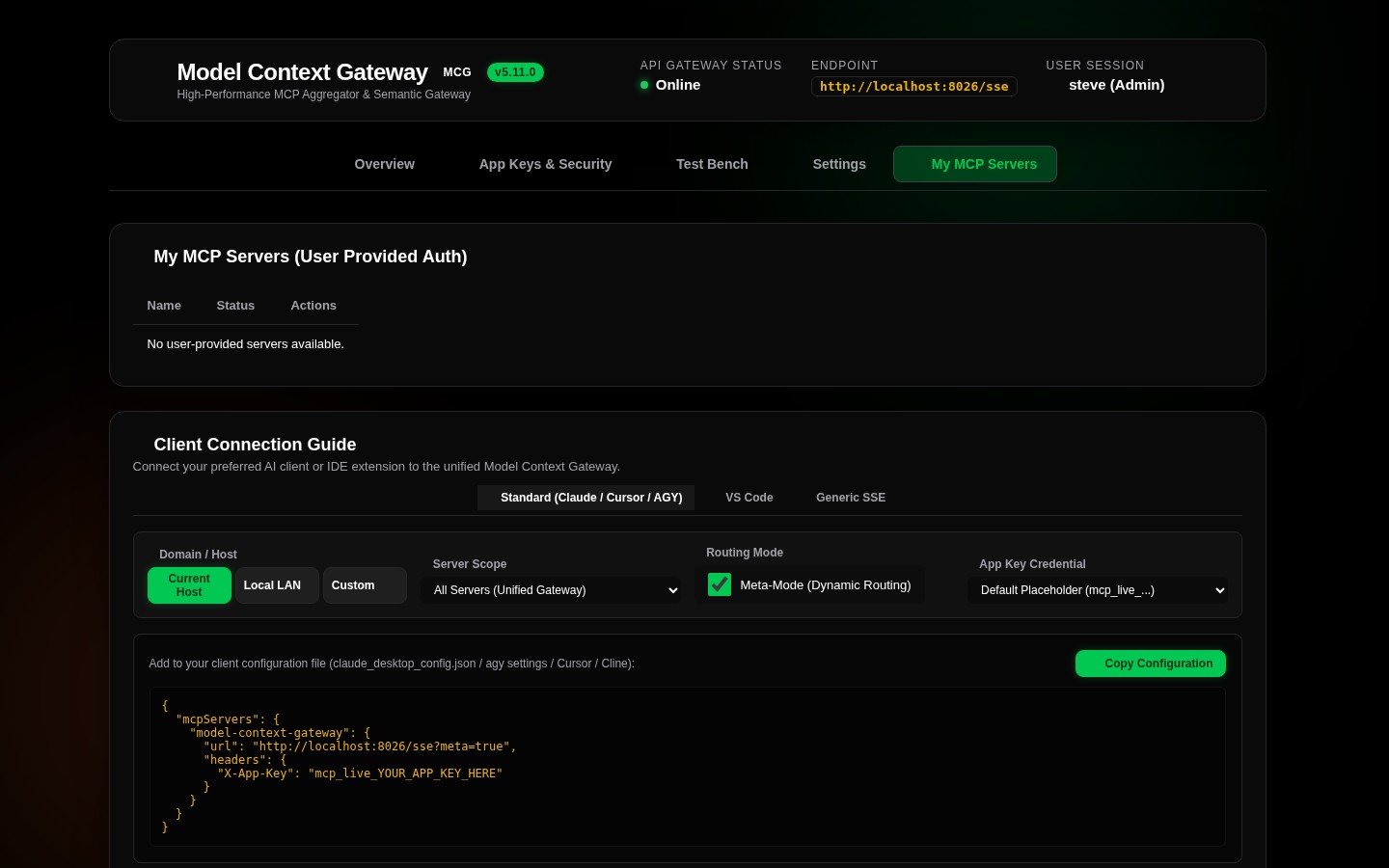
In multi-tenant or team environments, individual users can supply personal access tokens (PATs) or custom credentials for shared servers:
- Stored credentials are encrypted using an envelope master key.
- Users can view and copy customized direct proxy endpoints (
http://localhost:8080/{serverId}) pre-configured for their personal identity. - Eliminates credential sharing while maintaining centralized auditing and policy governance.